
At the charger
Park and open the charge port
- EV3
- Passenger (right) side
- EV4
- Passenger (right) side
- EV9
- Rear right (passenger side)
- IONIQ 9
- Rear, passenger (right) side
Choose the plug and 회원카드 (Member card)
DC콤보 (DC Combo) is for fast charging, AC 5핀 (AC 5-pin) for slow charging. The SOCAR charging card is in the card reader on the dashboard, in front of the driver's seat. Tap it on the member card reader, not in the card slot.
What the charger screen looks like
Most chargers in Korea show Korean only. These are the buttons to look for. Screens differ a little by operator.
If the screen is dark, tap it 2 or 3 times to wake it up. When you finish, press 충전 완료 (Charging complete) before you unplug. Always choose 회원카드 (Member card). Don't choose credit card or QR payment. If you pay with your own card or a charging app, we can't refund it.
Plug in the car
Once the card is read, the plug holder opens. After plugging in, press 충전시작 (Start charging) if it shows on the screen, and check that charging has started.
When done, press 충전 완료 (Charging complete)
Hold the button on top of the plug, pull it out and put it back, then close the holder and the charge port.
The card belongs to this car. Put it back after every charge.
Tesla Model Y
Your Model Y can charge in two ways. Both are free, so use whichever is closer. Jeju has only two Superchargers, so you will often charge at a regular charger with the adapter.
Charge port
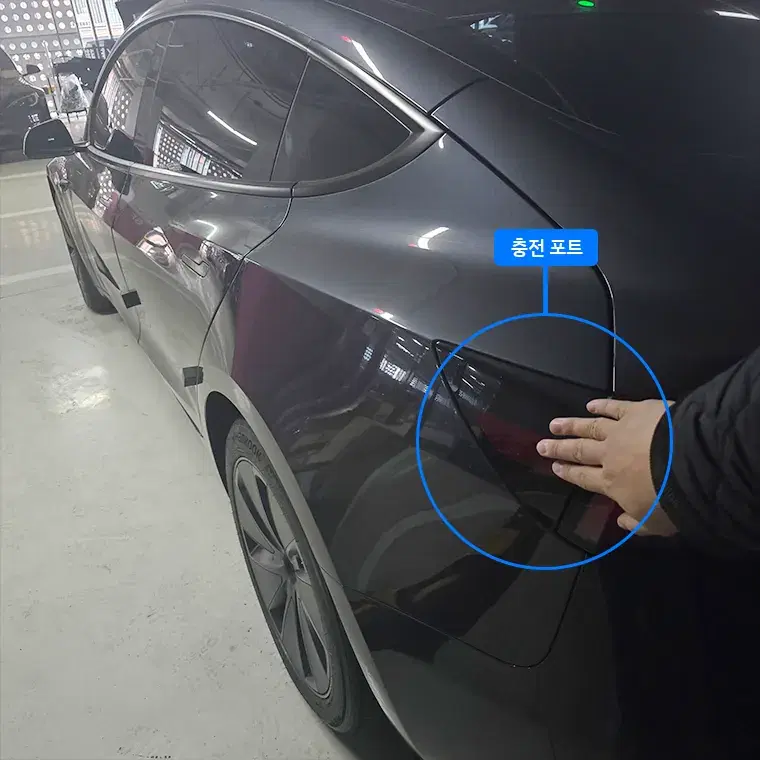
Tesla-only fast chargers. No card, no app and no adapter.
Superchargers in Jeju
Jeju Store
Jeju City · 8 stalls · up to 250 kW · open 24 hours
Seogwipo – Lotte Hotel Jeju
Jungmun · 12 stalls · up to 119 kW · open 24 hours
Park and open the charge port
Plug in the cable
Charging starts by itself.
Unplug and move the car
Hang the cable back.
Regular fast and slow chargers. Use the adapter and the SOCAR charging card in the car. The card is attached to the card reader on the dashboard, in front of the driver's seat.
Take the matching adapter
The DC adapter is for fast chargers, the AC adapter for slow chargers.
- Fast chargerDC콤보 (DC Combo)DC adapter (fast)Model Y
For fast chargers with a DC Combo plug. Fit it onto the charger plug, then plug into the car.
- Slow chargerAC 5핀 (AC 5-pin)AC adapter (slow)Model Y
For slow chargers with an AC plug. Good when the car can stay parked for a long time.
- SuperchargerModel Y
No adapter needed. Plug the Supercharger cable straight into the car.
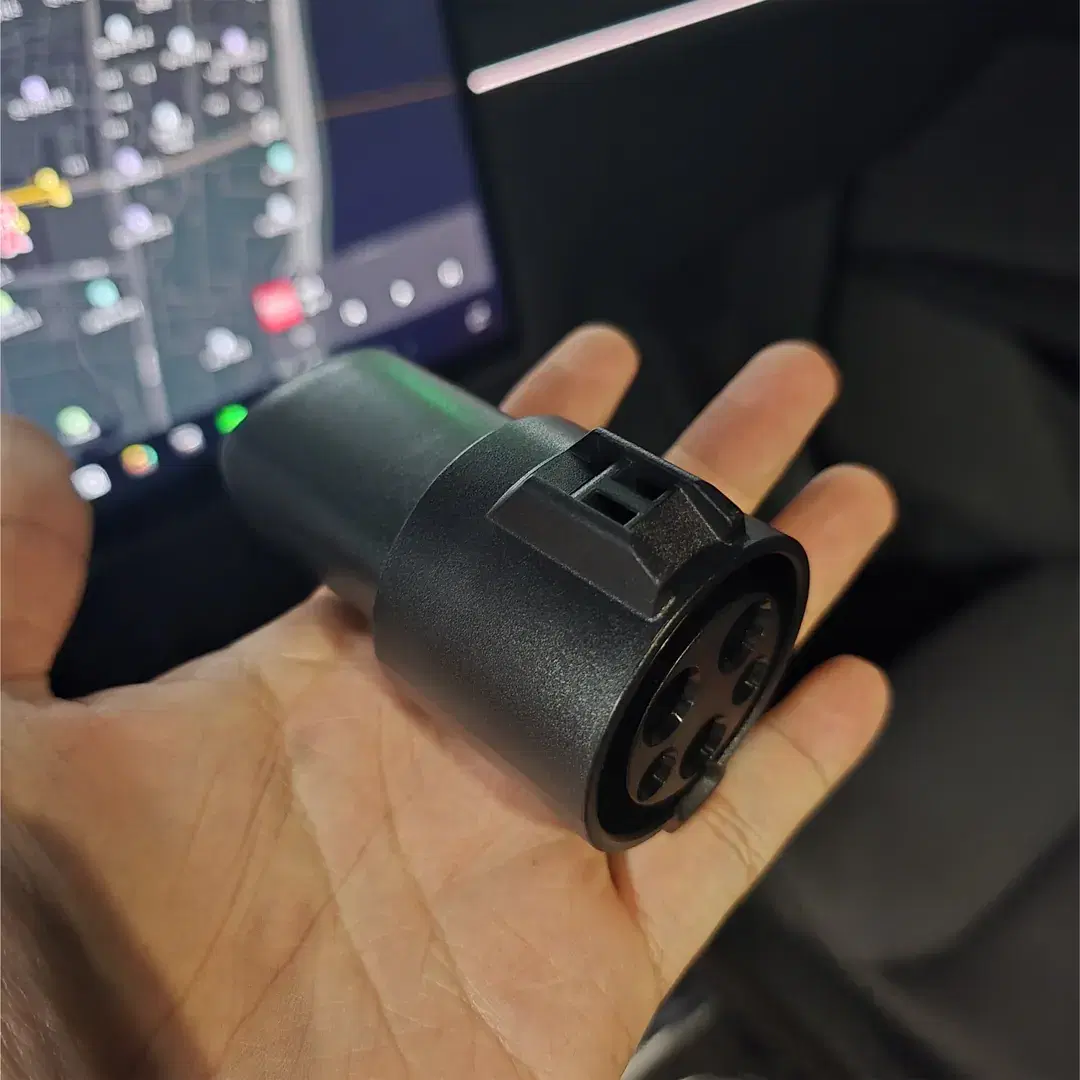
One of the adapters, held in the hand. It fits onto the charger plug, and then you plug it into the car. Choose the plug and 회원카드 (Member card)
Tap the SOCAR charging card on the member card reader, not in the card slot.
What the charger screen looks like
Most chargers in Korea show Korean only. These are the buttons to look for. Screens differ a little by operator.
If the screen is dark, tap it 2 or 3 times to wake it up. When you finish, press 충전 완료 (Charging complete) before you unplug. Always choose 회원카드 (Member card). Don't choose credit card or QR payment. If you pay with your own card or a charging app, we can't refund it.
Fit the adapter and plug in
Fit the adapter onto the charger plug first. If the screen shows 충전시작 (Start charging), press it and check that charging has started.
When done, press 충전 완료 (Charging complete)
Unplug and take the adapter off.
After charging, take the adapter off the charger plug and put it back in the car. Without it, you can't use regular chargers. A lost adapter is charged at its actual cost of ₩100,000.
Kia EV3
Park and open the charge port
Passenger (right) side. Press the cover to open it, and close it by hand after charging.
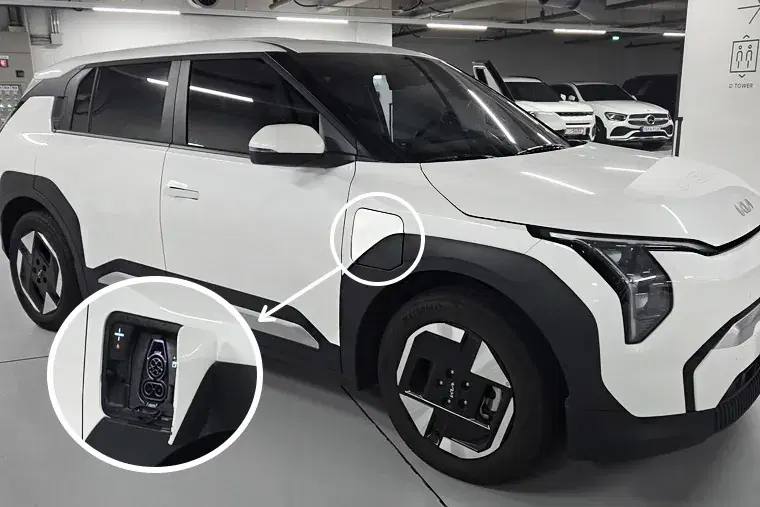
The charge port is in the white circle, on the passenger (right) side above the front wheel. The close-up shows it open. 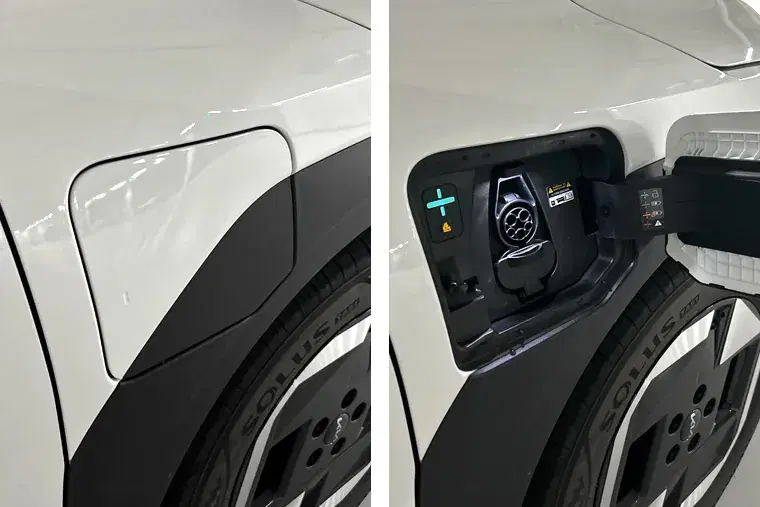
The charge port cover closed (left) and open (right). Choose the plug and 회원카드 (Member card)
DC콤보 (DC Combo) is for fast charging, AC 5핀 (AC 5-pin) for slow charging. The SOCAR charging card is in the card reader on the dashboard, in front of the driver's seat. Tap it on the member card reader, not in the card slot.
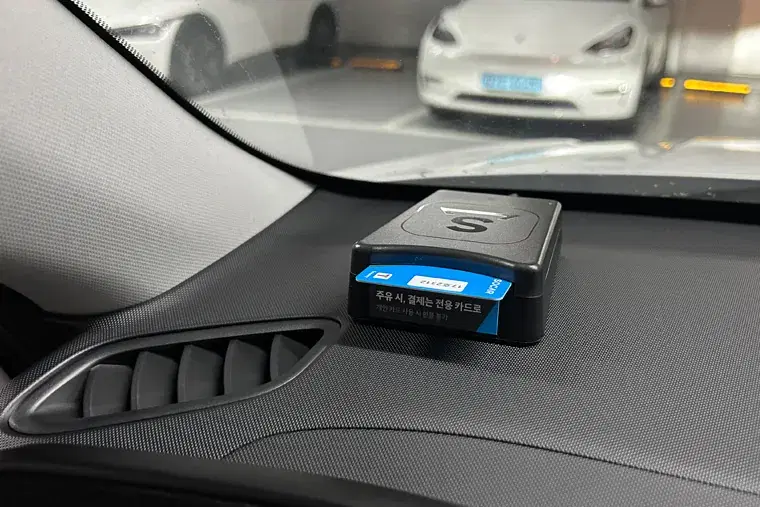
The SOCAR charging card sits in a card reader like this one, on the dashboard in front of the driver's seat. What the charger screen looks like
Most chargers in Korea show Korean only. These are the buttons to look for. Screens differ a little by operator.
If the screen is dark, tap it 2 or 3 times to wake it up. When you finish, press 충전 완료 (Charging complete) before you unplug. Always choose 회원카드 (Member card). Don't choose credit card or QR payment. If you pay with your own card or a charging app, we can't refund it.
Plug in the car
Once the card is read, the plug holder opens. After plugging in, press 충전시작 (Start charging) if it shows on the screen, and check that charging has started.
When done, press 충전 완료 (Charging complete)
Hold the button on top of the plug, pull it out and put it back, then close the holder and the charge port.
The card belongs to this car. Put it back after every charge.
Kia EV4
Park and open the charge port
Passenger (right) side. Press the cover to open it.
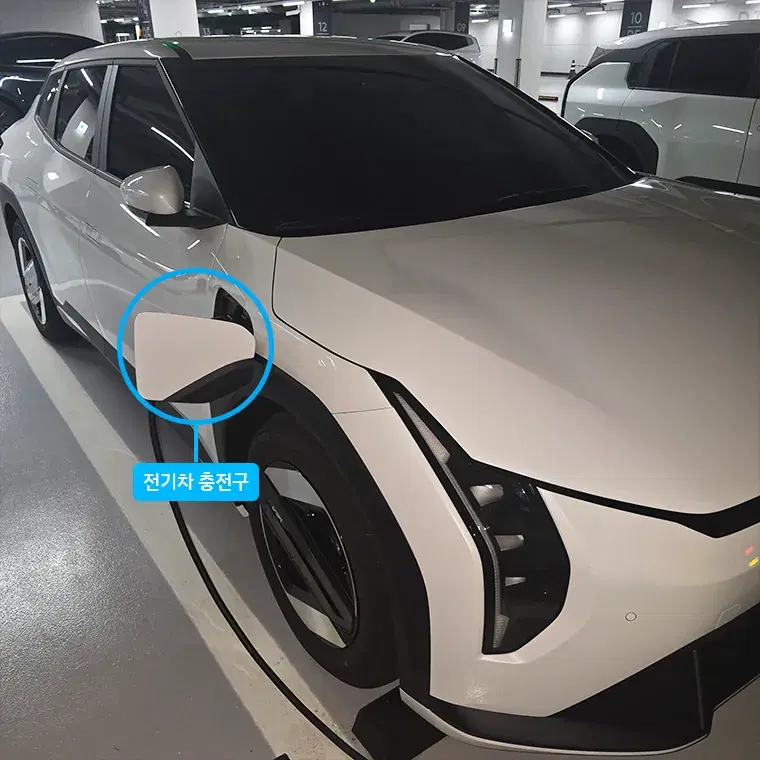
The charge port is in the blue circle, on the passenger (right) side above the front wheel. Choose the plug and 회원카드 (Member card)
DC콤보 (DC Combo) is for fast charging, AC 5핀 (AC 5-pin) for slow charging. The SOCAR charging card is in the card reader on the dashboard, in front of the driver's seat. Tap it on the member card reader, not in the card slot.
The SOCAR charging card sits in a card reader like this one, on the dashboard in front of the driver's seat. What the charger screen looks like
Most chargers in Korea show Korean only. These are the buttons to look for. Screens differ a little by operator.
If the screen is dark, tap it 2 or 3 times to wake it up. When you finish, press 충전 완료 (Charging complete) before you unplug. Always choose 회원카드 (Member card). Don't choose credit card or QR payment. If you pay with your own card or a charging app, we can't refund it.
Plug in the car
Once the card is read, the plug holder opens. After plugging in, press 충전시작 (Start charging) if it shows on the screen, and check that charging has started.
When done, press 충전 완료 (Charging complete)
Hold the button on top of the plug, pull it out and put it back, then close the holder and the charge port.
The card belongs to this car. Put it back after every charge.
Kia EV9
Park and open the charge port
Rear right (passenger side). To open it, press the button behind the steering wheel at the lower left. To close it, press the button inside the port.
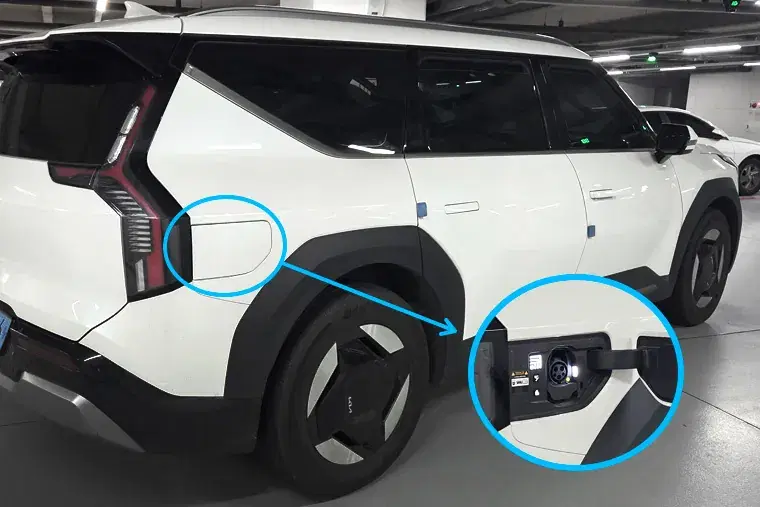
The charge port is in the blue circle, at the rear on the passenger (right) side. The close-up shows it open. 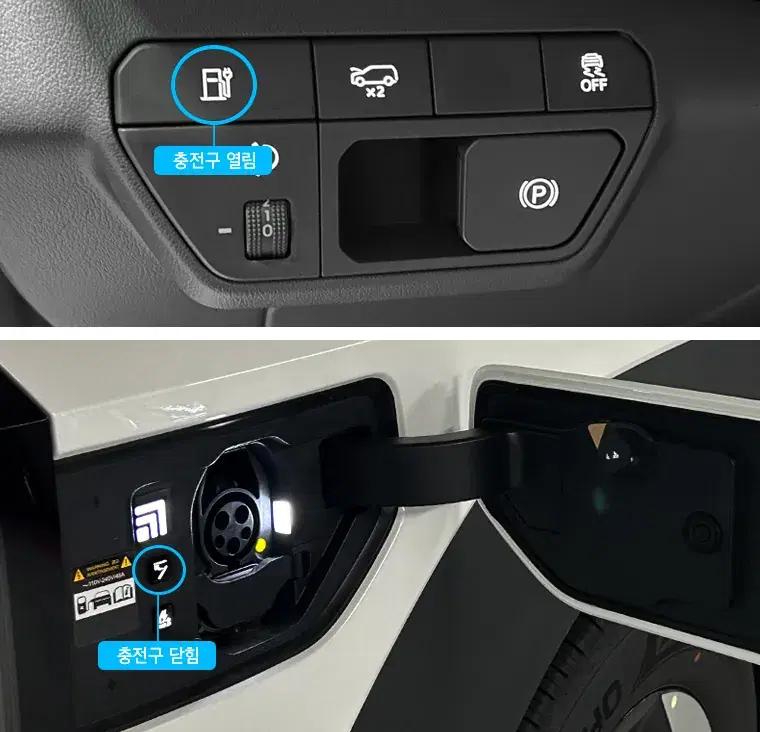
Top: the circled button on the dashboard panel opens the charge port. Bottom: the circled button inside the port closes it. - Port won't open
- Press the voice button on the steering wheel and say 충전구 열어줘 (open the charge port).
Choose the plug and 회원카드 (Member card)
DC콤보 (DC Combo) is for fast charging, AC 5핀 (AC 5-pin) for slow charging. The SOCAR charging card is in the card reader on the dashboard, in front of the driver's seat. Tap it on the member card reader, not in the card slot.
The SOCAR charging card sits in a card reader like this one, on the dashboard in front of the driver's seat. What the charger screen looks like
Most chargers in Korea show Korean only. These are the buttons to look for. Screens differ a little by operator.
If the screen is dark, tap it 2 or 3 times to wake it up. When you finish, press 충전 완료 (Charging complete) before you unplug. Always choose 회원카드 (Member card). Don't choose credit card or QR payment. If you pay with your own card or a charging app, we can't refund it.
Plug in the car
Once the card is read, the plug holder opens. After plugging in, press 충전시작 (Start charging) if it shows on the screen, and check that charging has started.
When done, press 충전 완료 (Charging complete)
Hold the button on top of the plug, pull it out and put it back, then close the holder and the charge port.
The card belongs to this car. Put it back after every charge.
Hyundai IONIQ 9
Park and open the charge port
At the rear, on the passenger (right) side. Press the cover to open it.
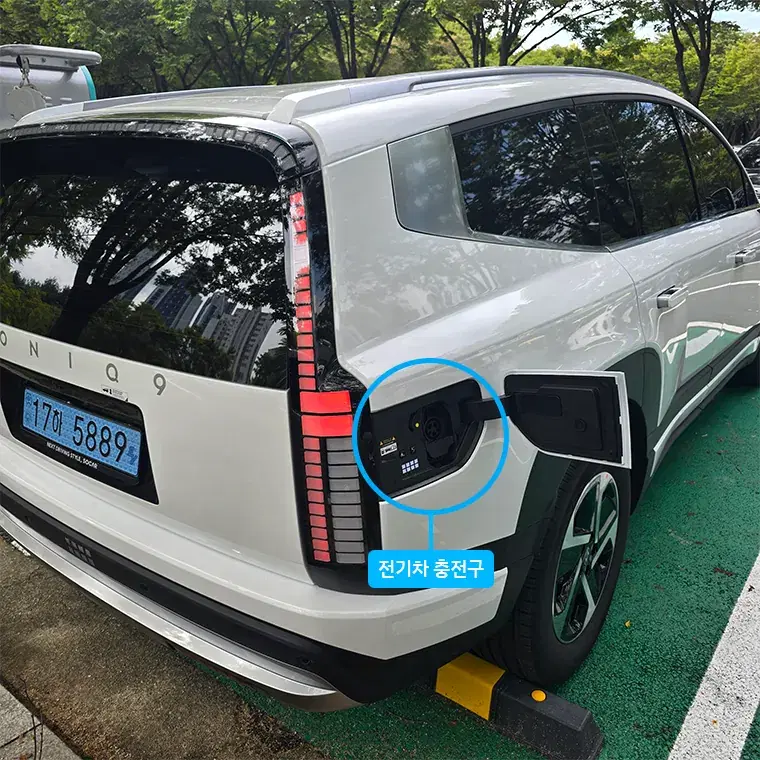
The charge port is in the blue circle, shown open: at the rear, on the passenger (right) side. Choose the plug and 회원카드 (Member card)
DC콤보 (DC Combo) is for fast charging, AC 5핀 (AC 5-pin) for slow charging. The SOCAR charging card is in the card reader on the dashboard, in front of the driver's seat. Tap it on the member card reader, not in the card slot.
The SOCAR charging card sits in a card reader like this one, on the dashboard in front of the driver's seat. What the charger screen looks like
Most chargers in Korea show Korean only. These are the buttons to look for. Screens differ a little by operator.
If the screen is dark, tap it 2 or 3 times to wake it up. When you finish, press 충전 완료 (Charging complete) before you unplug. Always choose 회원카드 (Member card). Don't choose credit card or QR payment. If you pay with your own card or a charging app, we can't refund it.
Plug in the car
Once the card is read, the plug holder opens. After plugging in, press 충전시작 (Start charging) if it shows on the screen, and check that charging has started.
When done, press 충전 완료 (Charging complete)
Hold the button on top of the plug, pull it out and put it back, then close the holder and the charge port.
The card belongs to this car. Put it back after every charge.
If charging doesn't work
The charger won't accept the card. What should I do?
Check that you chose 회원카드 (Member card), then tap the card on the member card reader, not in the card slot. The card works only with partner operators, so pick a charger from our map. If it still fails, try another charger nearby or contact us.
The charger screen is dark.
Tap the screen 2 or 3 times to wake it up.
The plug won't come out of the car.
Press 충전 완료 (Charging complete) on the screen first. Make sure the car is unlocked. Then hold the button on top of the plug and pull. If it is still stuck, hold the button, push the plug in a little and try again.
The adapter or the charging card is missing.
Contact us before you set off. A lost adapter is charged at ₩100,000, so tell us as soon as you notice one is missing. Tap "Need help?" on this page to chat on WhatsApp or WeChat, or email global_cs@socar.kr with your reservation number.
Using the Model Y
Start and driveDriving a car with no start button · Neutral (N) · Tesla app · FSD Lite
Driving a car with no start button
The Web Smart Key unlocks the car, and the brake pedal turns it on.
Open the Web Smart Key from your email and tap "Open the door" to unlock the car.
Get in and press the brake pedal. The car turns on by itself.
Keep your foot on the brake. The gear selector appears on the left edge of the screen. Slide up for D (drive) or down for R (reverse).
To park, press and hold P on the screen. Get out and the car turns itself off.
Lock the car with "Lock the door" in the Web Smart Key.
If the car does not turn on, tap "Open the door" in the Web Smart Key again, then press the brake.
- Neutral (N)
- With the brake pressed, press and hold N on the gear selector on the screen.
- Tesla app
- You can't connect it to our cars. Use the Web Smart Key to unlock and lock the car.
- FSD Lite
- Assisted self-driving (FSD Lite) is not available on our Model Y.
Inside the carBluetooth · Air conditioning and seats · Side mirrors · Steering wheel position · Phone charging
- Bluetooth
- Tap the car icon at the bottom left of the screen, then "Bluetooth". Turn on Bluetooth on your phone. Find your phone on the screen and tap 연결 (Connect).
Tap the car icon at the bottom left (1), then "Bluetooth" (2), then 연결 (Connect) next to your phone (3). - Air conditioning and seats
- Tap the buttons at the bottom left of the screen. You can set the air conditioning, seat heating and seat ventilation there.
Tap the temperature in the blue circle, at the bottom left of the screen. The air conditioning, seat heating and ventilation controls open. - Side mirrors
- Tap the car icon, then 컨트롤 (Controls) and 사이드미러 (Side mirrors). Adjust them with the left scroll button on the steering wheel. Tap 미러접기 (Fold mirrors) to fold or unfold them.
Tap the car icon (1), 컨트롤 (Controls) (2) and 사이드미러 (Side mirrors) (3). Then aim the mirror with the left scroll button on the steering wheel (4). 미러 접기 (Fold mirrors) (5) folds and unfolds them. - Steering wheel position
- Tap the car icon, then 컨트롤 (Controls) and 스티어링 (Steering). Adjust it with the left scroll button on the steering wheel.
Tap the car icon (1), 컨트롤 (Controls) (2) and 스티어링 (Steering) (3). Then move the wheel up, down, closer or farther with the left scroll button on the steering wheel (4). - Phone charging
- Put your phone on the wireless charging pad. It starts charging by itself.
Put your phone in the area in the blue box to charge it. The red button in the white circle is the hazard lights.
Trunk and seatsTrunk
- Trunk
- Unlock the doors first. Then press the button above the rear license plate. You can also open and close it from the screen.
The button in the blue circle, above the rear license plate, opens the trunk. The button in the round close-up closes it.
If something goes wrongScreen frozen · Screen still black
- Screen frozen
- Hold both scroll buttons on the steering wheel until the Tesla logo appears. If nothing happens, keep the brake pressed while you hold them.
- Screen still black
- Everyone gets out. Close all doors and the trunk, and leave the car alone for 15 to 30 minutes. It restarts when you open the door.
Using the EV3
Some features differ by trim and model year.
Start and driveStart button · Gear lever · Parking brake
- Start button
- Behind the steering wheel on the right, next to the gear lever. With the gear in P, press the brake and the start button.
- Gear lever
- Push it up for D (drive) or down for R (reverse). Press the button on the lever for P (park).
The start button is in the blue circle. Turn the gear lever up for D (1) or down for R (2). The P button on the end of the lever (3) puts the car in park. - Parking brake
- The switch behind the wheel at the lower left. To release it, press the brake and push the switch down. To set it, stop the car, press the brake and pull it up. Check that it is off before you drive.
The parking brake switch is in the blue circle.
Button icons
What the icons on the buttons mean.
On the steering wheel (smart cruise control)
- Lane following assist
- Cruise speed up or down
- Set cruise speed
- Following distance
Other buttons
- Headlamp leveling
- Auto Hold
- Auto Stop offAuto Stop switches the car off when it stops.
- Traction control off
- Downhill brake control
Inside the carBluetooth · Wi-Fi · Side mirrors · Power seats · USB and phone charging
- Bluetooth
- Press SETUP, then 기기연결 (Connect devices), and add a new device. On your phone, choose the car's name. Don't choose "SOCAR BLUE". It may not work well, for example the sound may be quiet.
- Wi-Fi
- The in-car Wi-Fi password is safedrive.
- Side mirrors
- The mirror buttons fold and unfold the mirrors, with the car on or off. Choose the left or right mirror, then aim it with the adjustment switch.
On the driver's door: 1 folds and unfolds the mirrors, 2 chooses the left (L) or right (R) mirror, and 3 aims it. - Power seats
- The seats are power seats. Adjust them with the seat switches.
On the side of the seat, the upright switch tilts the seatback. The long switch moves the seat forward, back, up and down. - USB and phone charging
- The car has USB-C ports, so bring a USB-C cable. It also has a wireless charging pad for your phone.
The USB-C ports are in the blue oval. The wireless phone charging pad is in the dotted box.
Trunk and seatsTrunk
- Trunk
- Unlock the doors first. Then press the trunk handle to open it.
Press the handle shown in the round close-up, above the rear license plate, to open the trunk.
If something goes wrongCar won't start · Steering wheel locked · Parking brake won't release · Bluetooth won't pair
- Car won't start
- Put the gear in P. Keep the brake pressed while you press the start button.
- Steering wheel locked
- Press the brake and the start button. It unlocks.
- Parking brake won't release
- Keep the brake pressed while you push the switch down.
- Bluetooth won't pair
- Delete the devices already saved in the car, then try again.
Using the EV4
Some features differ by trim and model year.
Start and driveStart button · Gear selector · Parking brake
- Start button
- Behind the steering wheel on the right, with the gear selector. With the gear in P, press the brake and the start button.
- Gear selector
- Turn it up for D (drive) or down for R (reverse). Press the P button in the middle for P (park).
Turn the end of the gear selector up for D (1) or down for R (2). The round EV button next to it is the start button. The button on the end of the gear selector puts the car in park (P). - Parking brake
- The switch to the left of the driver's seat. To release it, press the brake and push the switch down. To set it, stop the car, press the brake and pull it up. Check that it is off before you drive.
The parking brake switch is in the white circle.
Button icons
What the icons on the buttons mean.
On the steering wheel (smart cruise control)
- Lane following assist
- Cruise speed up or down
- Set cruise speed
- Following distance
Other buttons
- Headlamp leveling
- Auto Hold
- Auto Stop offAuto Stop switches the car off when it stops.
- Traction control off
- Downhill brake control
Inside the carBluetooth · Wi-Fi · Side mirrors · USB and phone charging
- Bluetooth
- Press SETUP, then 기기 연결 (Connect devices) and 추가 (Add). On your phone, choose the car's name, not "SOCAR BLUE". Menus can differ by model year. If you don't see these, try 홈 (Home), then 모바일 기기 (Mobile devices) and 새로운 기기 연결 (Connect new device).
Press SETUP (1), then 기기 연결 (Connect devices) (2), then 신규 추가 (Add new) (3). - Wi-Fi
- The in-car Wi-Fi password is safedrive.
- Side mirrors
- The mirror buttons fold and unfold the mirrors, with the car on or off. Choose the left or right mirror, then aim it with the adjustment switch.
On the driver's door: 1 folds and unfolds the mirrors, 2 chooses the left (L) or right (R) mirror, and 3 aims it. - USB and phone charging
- The car has USB-C ports, so bring a USB-C cable. It also has a wireless charging pad for your phone.
The USB-C ports are in the blue oval. The wireless phone charging pad is in the white box.
Trunk and seatsTrunk
- Trunk
- Unlock the doors first. Then press the button near the rear wiper to open it.
The button in the blue circle opens the trunk.
If something goes wrongCar won't start · Steering wheel locked · Parking brake won't release · Bluetooth won't pair
- Car won't start
- Put the gear in P. Keep the brake pressed while you press the start button.
- Steering wheel locked
- Press the brake and the start button. It unlocks.
- Parking brake won't release
- Keep the brake pressed while you push the switch down.
- Bluetooth won't pair
- Delete the devices already saved in the car, then try again.
Using the EV9
Some features differ by trim and model year.
Start and driveStart button · Gear lever · Parking brake
- Start button
- The start button and the gear lever are on the right of the steering wheel. With the gear in P, press the brake and the start button.
- Gear lever
- Push it up for D (drive) or down for R (reverse). Press the button on the lever for P (park).
The start button is in the blue circle. Turn the gear lever up for D (1) or down for R (2). The P button on the end of the lever (3) puts the car in park. - Parking brake
- The switch behind the wheel at the lower left. To release it, press the brake and push the switch down. To set it, stop the car, press the brake and pull it up. Check that it is off before you drive.
The parking brake switch is in the blue circle.
Button icons
What the icons on the buttons mean.
On the steering wheel (smart cruise control)
- Lane following assist
- Cruise speed up or down
- Set cruise speed
- Following distance
Other buttons
- Headlamp leveling
- Auto Hold
- Auto Stop offAuto Stop switches the car off when it stops.
- Traction control off
- Downhill brake control
Inside the carBluetooth · Wi-Fi · Side mirrors · Power seats · USB and phone charging
- Bluetooth
- Press SETUP, then 블루투스 (Bluetooth), and add a new device. On your phone, choose the car's name, not "SOCAR BLUE".
- Wi-Fi
- The in-car Wi-Fi password is safedrive.
- Side mirrors
- The mirror buttons fold and unfold the mirrors, with the car on or off. Choose the left or right mirror, then aim it with the adjustment switch.
On the driver's door: 1 folds and unfolds the mirrors, 2 chooses the left (L) or right (R) mirror, and 3 aims it. - Power seats
- The seats are power seats. Adjust them with the seat switches.
On the side of the seat, the upright switch tilts the seatback. The long switch moves the seat forward, back, up and down. - USB and phone charging
- The car has USB-C ports, so bring a USB-C cable. The wireless charging pad for your phone is behind the cup holders.
The USB ports here are USB-C, as the note in the photo says. Put your phone on the pad in the dotted box to charge it.
Trunk and seatsTrunk · Rear seats · Front passenger seat · Power outlet
- Trunk
- Unlock the doors first. Then press the button to the right of the rear camera.
Press the button in the white oval, next to the rear camera above the license plate, to open the trunk. - Rear seats
- 2nd row: to fold a seat, press the button next to the headrest, pull the red strap at the bottom of the seatback, or press the button on the lower side of the seat. To fold the seatback down flat, pull the lever on the side of the seat. Pull it again to bring it back. 3rd row: pull the black strap on the side of the seatback, pull the black strap at the back of the seat from the trunk, or press the button on the right wall of the trunk.
The load space from the trunk, with the 2nd- and 3rd-row seats folded down. A 2nd-row seat before and after folding. Three ways to fold a 2nd-row seat: the button next to the headrest (1), the strap at the bottom of the seat (2), or the button low on the side of the seat (3). A 2nd-row seatback before and after folding it down flat. Pull the lever on the side of the seat, shown in the close-up, to fold the seatback down. Three ways shown for the 3rd row: the strap on the front of the seat (1), the strap on the back of the seat, from the trunk (2), or the buttons on the right wall of the trunk (3). - Front passenger seat
- A button on the left of the front passenger seatback moves that seat forward or back and tilts it. You can reach it from the driver's seat or the back seat, so getting into the back is easier.
The two buttons on the side of the front passenger seatback move that seat. - Power outlet
- There is a power outlet on the right wall of the trunk. Slide the cover left to open it and right to close it.
Slide the cover left to open the outlet (left photo) and right to close it (right photo).
If something goes wrongCar won't start · Steering wheel locked · Parking brake won't release · Bluetooth won't pair
- Car won't start
- Put the gear in P. Keep the brake pressed while you press the start button.
- Steering wheel locked
- Press the brake and the start button. It unlocks.
- Parking brake won't release
- Keep the brake pressed while you push the switch down.
- Bluetooth won't pair
- Delete the devices already saved in the car, then try again.
Using the IONIQ 9
Some features differ by trim and model year.
Start and driveStart button · Gear selector · Parking brake
- Start button
- Behind the steering wheel on the right, with the gear selector. With the gear in P, press the brake and the start button.
- Gear selector
- Turn it up for D (drive) or down for R (reverse). Press the P button in the middle for P (park).
Turn the end of the gear selector up for D (1) or down for R (2). The button on the end (3) puts the car in park (P). The START STOP button next to it starts the car. - Parking brake
- The switch to the left of the driver's seat. To release it, press the brake and push the switch down. To set it, stop the car, press the brake and pull it up. Check that it is off before you drive.
The parking brake switch is in the white circle.
Button icons
What the icons on the buttons mean.
On the steering wheel (smart cruise control)
- Lane following assist
- Cruise speed up or down
- Set cruise speed
- Following distance
Other buttons
- Headlamp leveling
- Auto Hold
- Auto Stop offAuto Stop switches the car off when it stops.
- Traction control off
- Downhill brake control
Inside the carBluetooth · Wi-Fi · Side mirrors · USB and phone charging
- Bluetooth
- Press SETUP, then 기기 연결 (Connect devices) and 신규 추가 (Add new). On your phone, choose the car's name, not "SOCAR BLUE". Menus can differ by model year. If you don't see these, try 홈 (Home), then 모바일 기기 (Mobile devices) and 새로운 기기 연결 (Connect new device).
Press SETUP (1), then 기기 연결 (Connect devices) (2), then 신규 추가 (Add new) (3). - Wi-Fi
- The in-car Wi-Fi password is safedrive.
- Side mirrors
- The mirror buttons fold and unfold the mirrors, with the car on or off. Choose the left or right mirror, then aim it with the adjustment switch.
On the driver's door: 1 folds and unfolds the mirrors, 2 chooses the left (L) or right (R) mirror, and 3 aims it. - USB and phone charging
- The car has USB-C ports, so bring a USB-C cable. It also has a wireless charging pad for your phone.
The USB-C ports are in the white box. The wireless phone charging pad is in the blue box.
Trunk and seatsTrunk · 3rd-row seats
- Trunk
- Unlock the doors first. Then press the button above the rear license plate.
The button in the white circle, above the license plate, opens the trunk. The button in the round close-up closes it. - 3rd-row seats
- From the trunk, press the 3rd-row seat button on the right to fold the seatback. You can also pull the strap on the back of the seat to fold it or put it back up.
From the trunk, the buttons in the white circle on the right wall fold the 3rd-row seats. Pull the strap on the back of the 3rd-row seat, where the arrow points.
If something goes wrongCar won't start · Steering wheel locked · Parking brake won't release · Bluetooth won't pair
- Car won't start
- Put the gear in P. Keep the brake pressed while you press the start button.
- Steering wheel locked
- Press the brake and the start button. It unlocks.
- Parking brake won't release
- Keep the brake pressed while you push the switch down.
- Bluetooth won't pair
- Delete the devices already saved in the car, then try again.
Questions
Do I pay anything for charging?
No. Charging with the SOCAR charging card is free, and so are Tesla Superchargers. Don't pay with your own card, a QR code or a charging app. If you do, we can't refund it.
Do I need to charge the car before I return it?
No. You can return the car at any battery level. There is no minimum charge at return.
When should I charge?
Charge before the range on the dashboard drops below 30 km. Running out of battery on the road is dangerous, so top up when you pass a charger.
How long does charging take?
As a rough guide, about 40 to 60 minutes on a fast charger and about 9 hours on a slow charger. It varies by car. If you are short on time, choose a fast charger. The charging map shows an estimate for your car.
How long can I stay at a charger?
Move the car once it has charged, so the next driver can use the charger. If you step away while it charges, come back in time. Under Korean law you can be fined for staying in a charging bay more than 1 hour after a fast charge starts, or more than 14 hours after a slow charge starts.
Do I pay for parking while I charge?
It depends on the car park. Some give a discount while you charge. Ask the car park staff when you leave.
Do I pay highway tolls?
Every car has a Hi-Pass terminal, so you don't need cash at toll gates. Tolls are charged to your card on file after the rental ends.